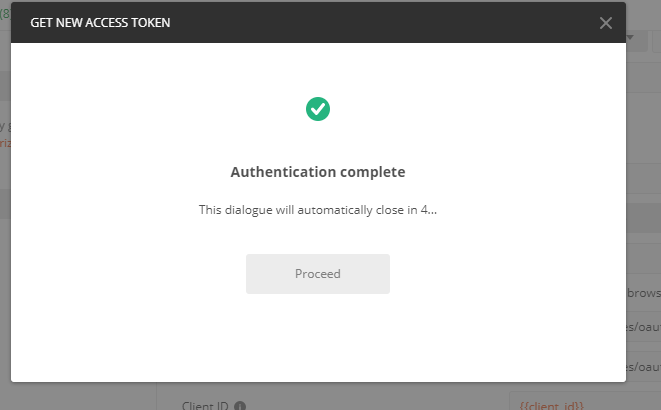
Connect Postman To Salesforce org

Instructions:
Inside your org:
- Create new connected-app:
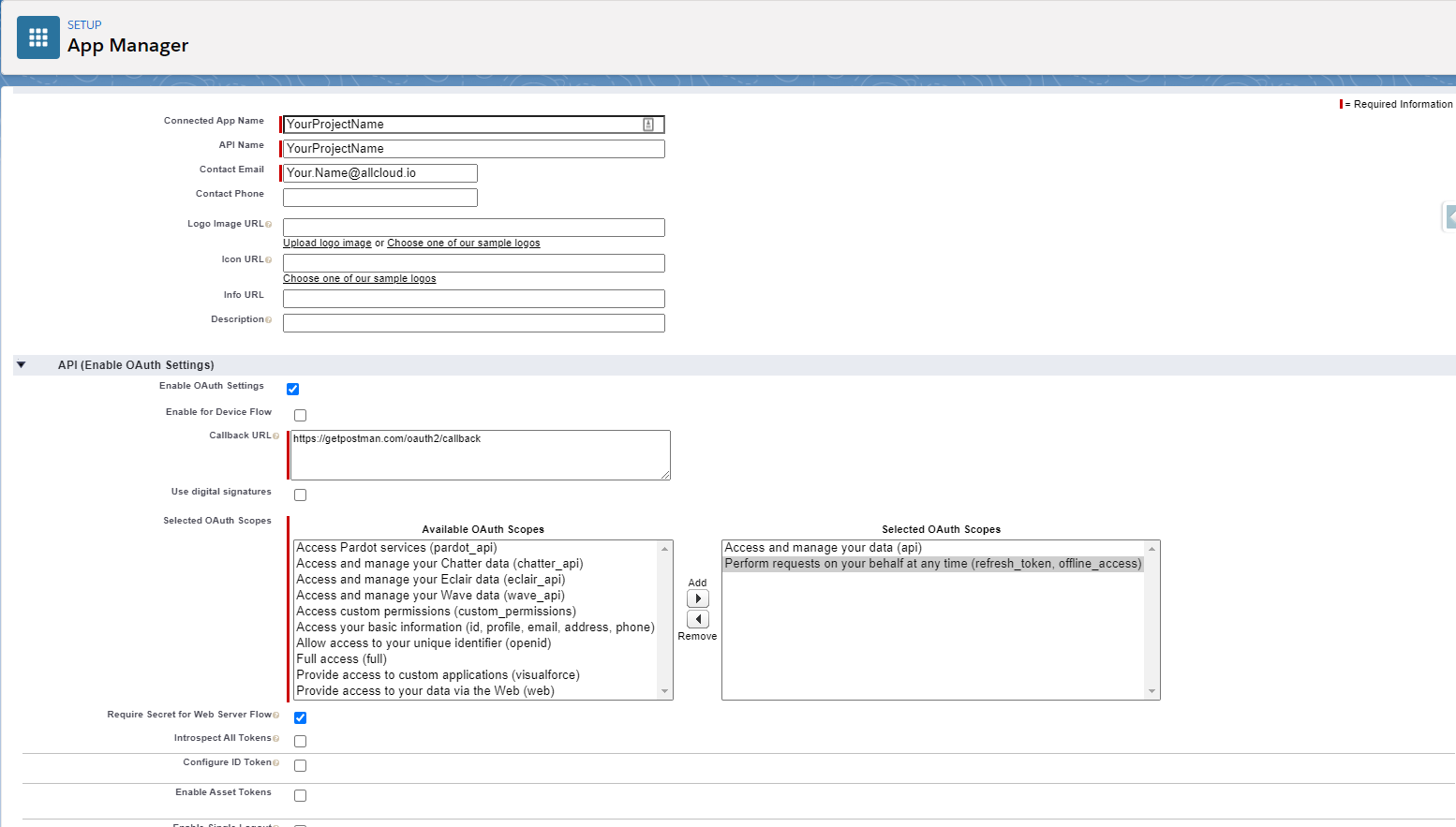
Gir icon → setup → App Manager → New Connected App : Enter the details as follow:
Connected App Name : <YourProjectName>
API Name: <YourProjectName>
Contact Email: <YourEmail@allcloud.io>
Enable OAuth Settings: V
Callback URL: https://getpostman.com/oauth2/callback
Selected OAuth Scopes: – (api)
– (refresh_token,offline_access)
click save and continue.
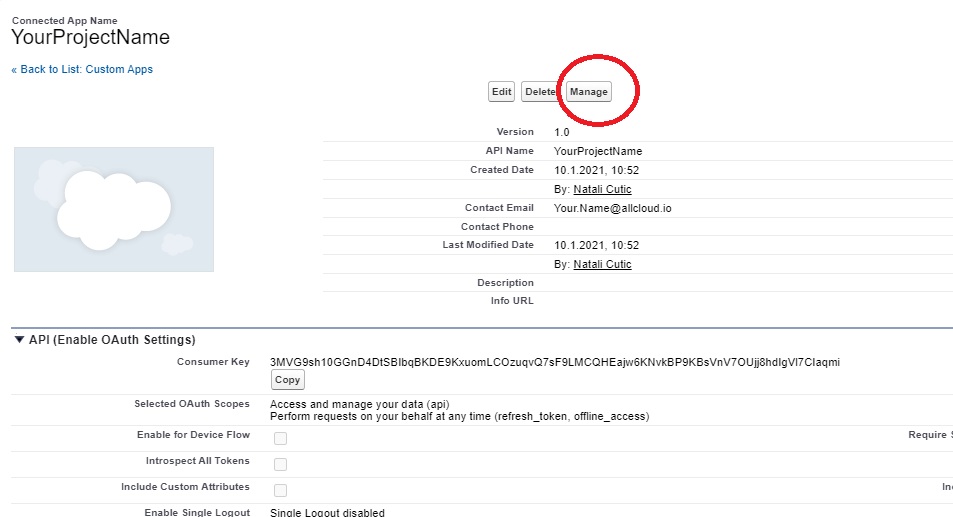
2. click manage and then Edit Policies:
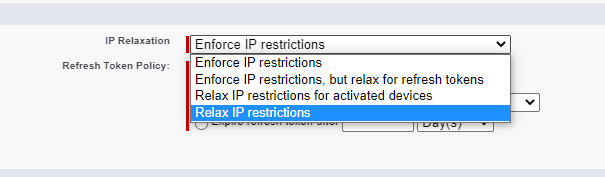
In the IP Relaxation Select : Relax IP restrictions
and save.
3. Go back to the connected App, there are two parameters you will need:
Consumer Key
Consumer Secret
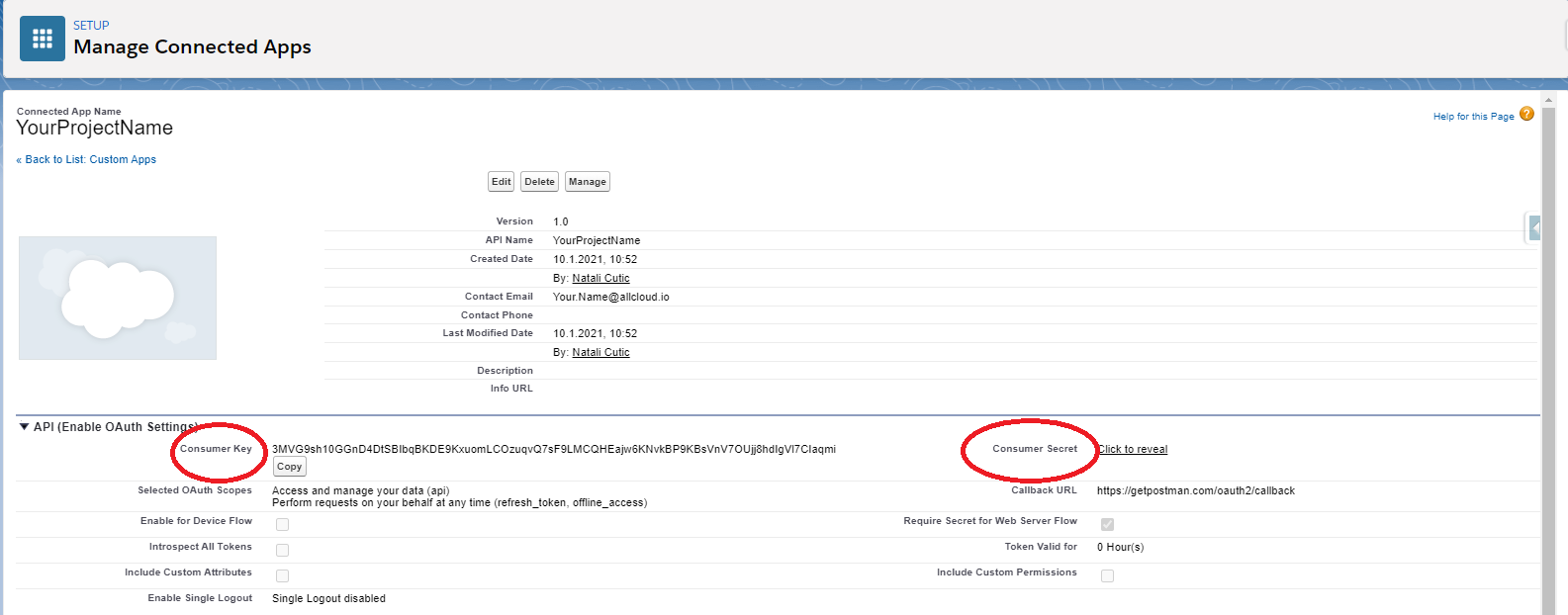
Inside Post-Man:
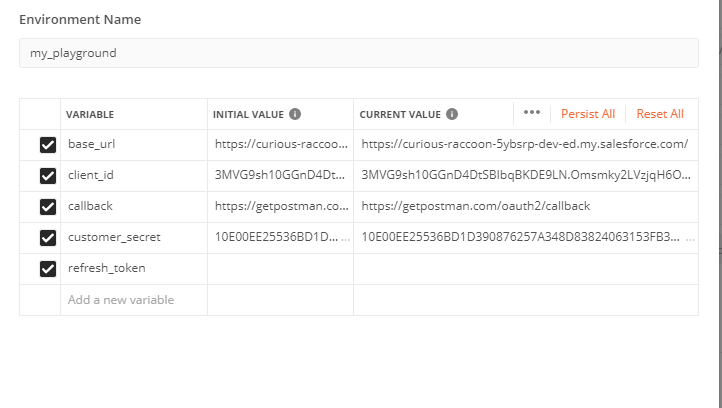
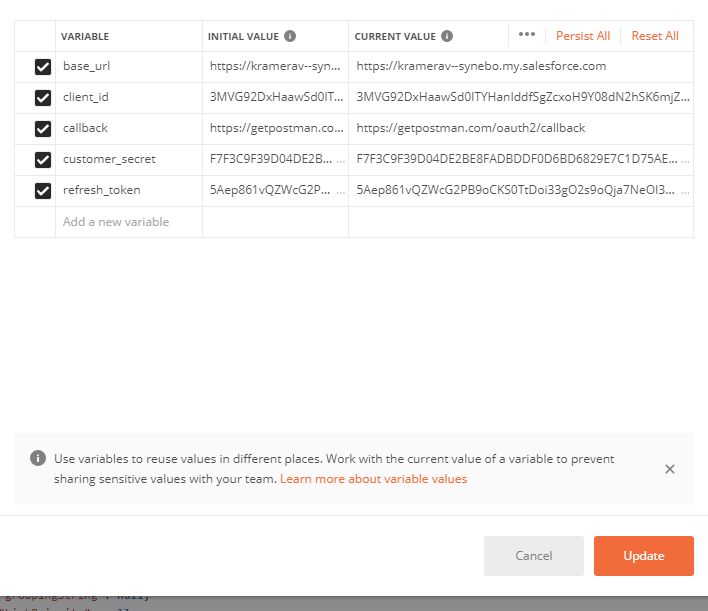
- New → Environment: enter details as follow : (Same value in Initial and Current)
Environment Name : <YourOrgName>
base_url : <https://your-org-name.my.salesforce.com>
client_id : <YourConsumerKey>
callback : https://getpostman.com/oauth2/callback
customer_secret : <YourConsumerSecret>
refresh_token : leave empty for now
click add.
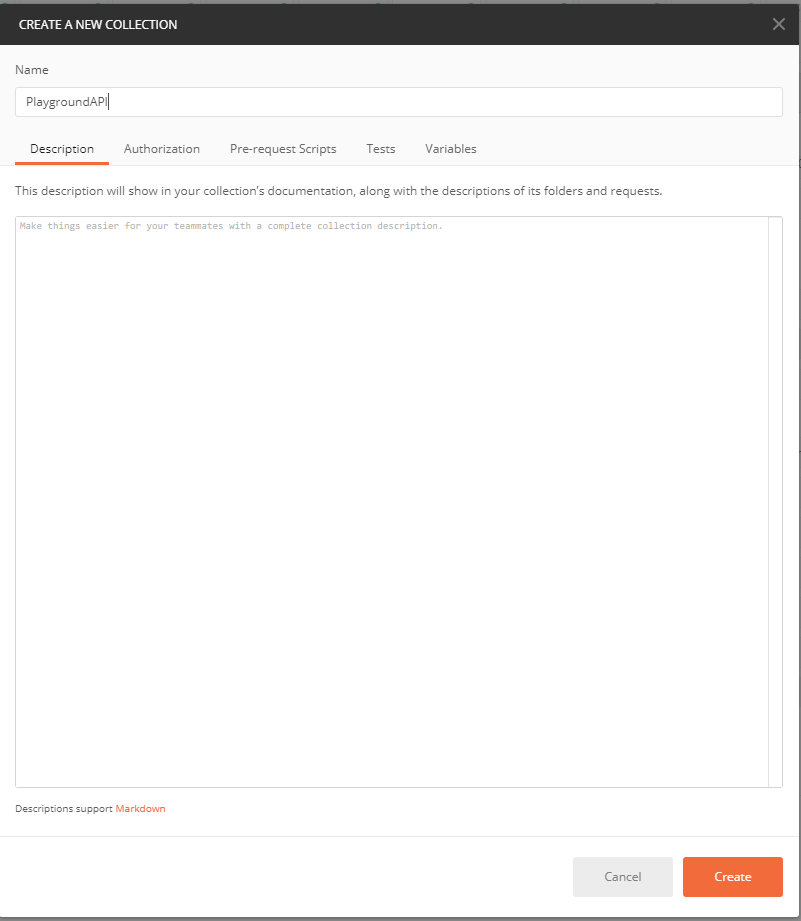
2. Click New → Collection
Collection Name : Your Current Project.
Create.
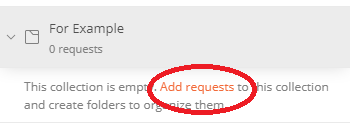
3. Add request to your new collection:
Request Name : <GetExample>
save.
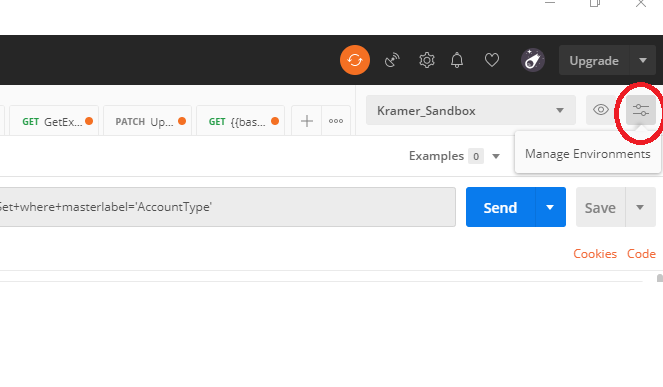
4. Go to your request, in top right corner choose your org Environment:
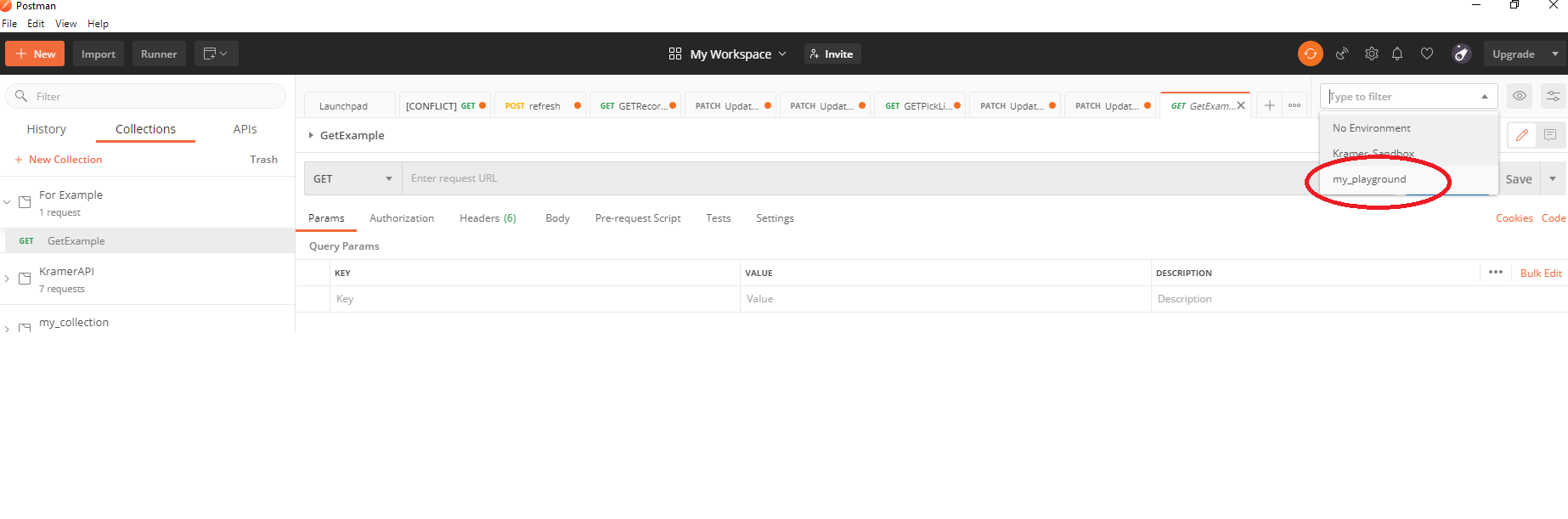
5. Go to Authorization: enter details as follow :
TYPE : OAuth 2.0
Configure New Token:
Token Name : <Temp_token>
Grant Type : Authorization Code
Callback URL : {{callback}}
Auth URL : {{base_url}}/services/oauth2/authorize
Access Token URL : {{base_url}}/services/oauth2/token
Client ID : {{client_id}}
Client Secret : {{customer_secret}}
Scope : api refresh_token
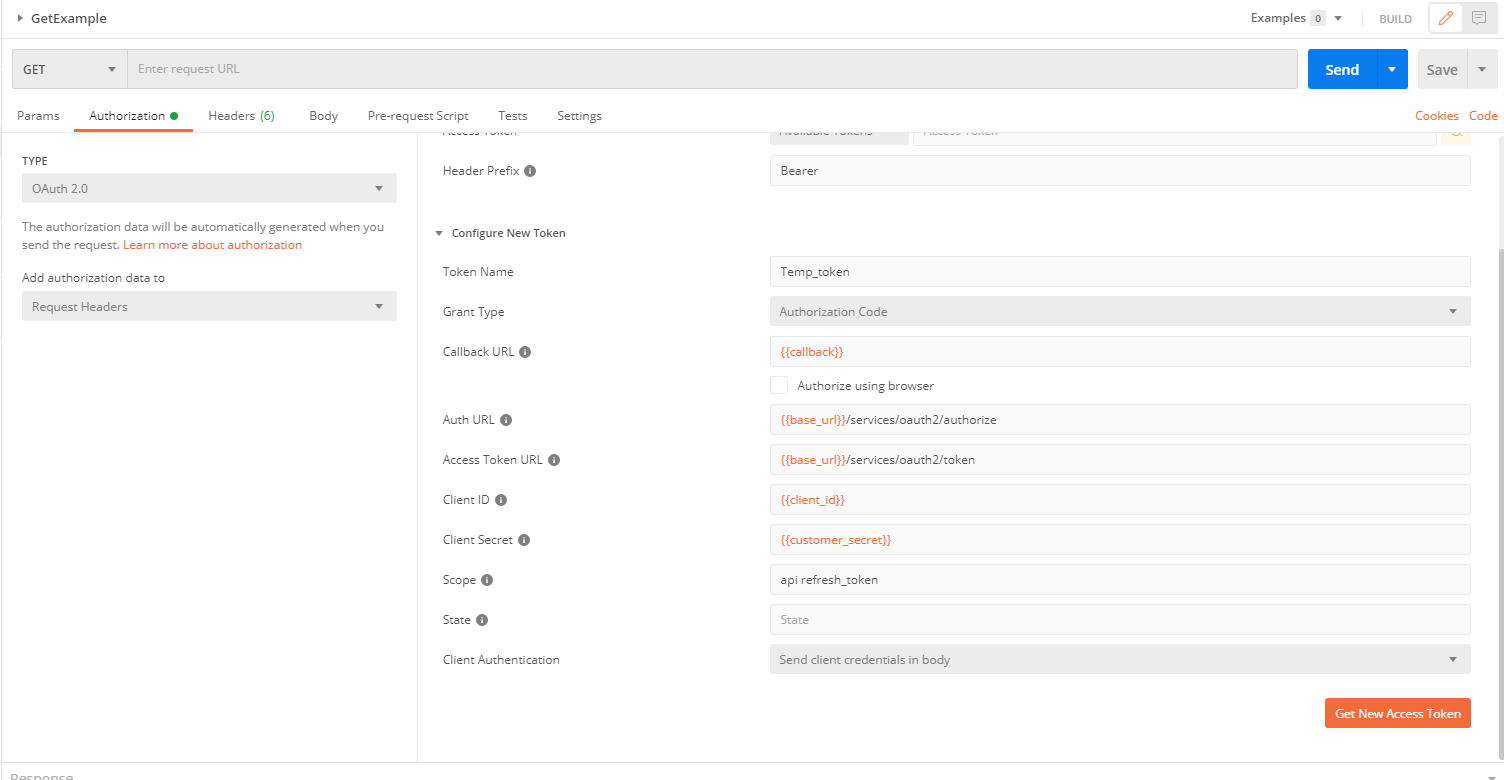
Click Get New Access Token
6. Very Important!! enter your correct user name and password – if entered wrong it will be very hard to change because of caching.
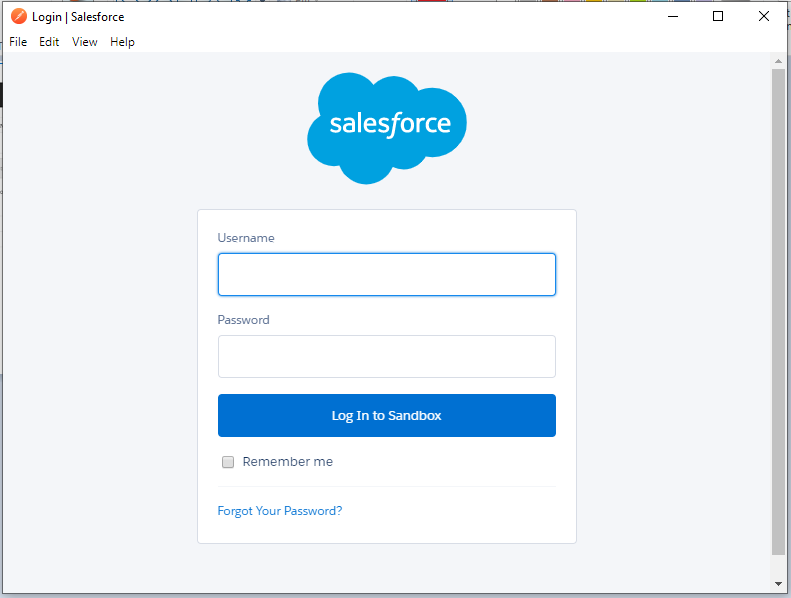
7. Rename your token :
Token Name : <yourOrg>+i
Copy your refresh Token:
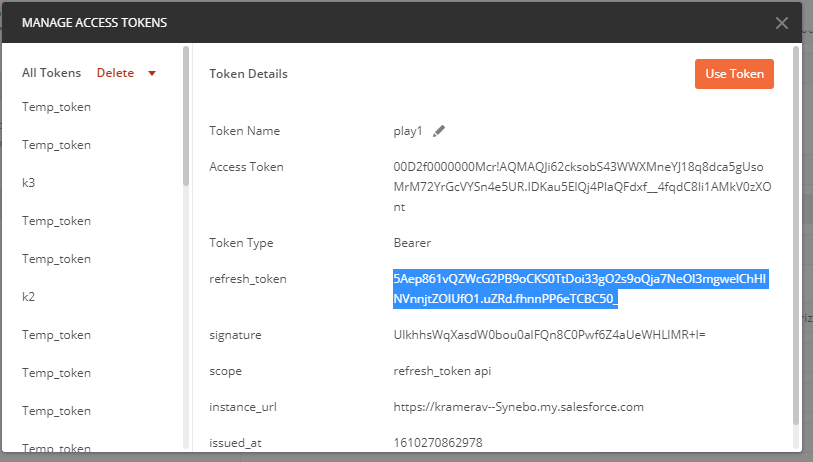
8. Click use Token.
9. For Using the refresh token instead of creating a new token every time:
click Manage Environments on the top right and add your refresh token to your org:
Click Update!
10. You are all Done!

Now if you have the next message:
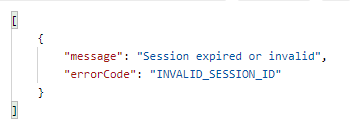
you go to Authorization choose your access Token and click get new Access Token – You don’t need to enter your credentials now because of the refresh token.
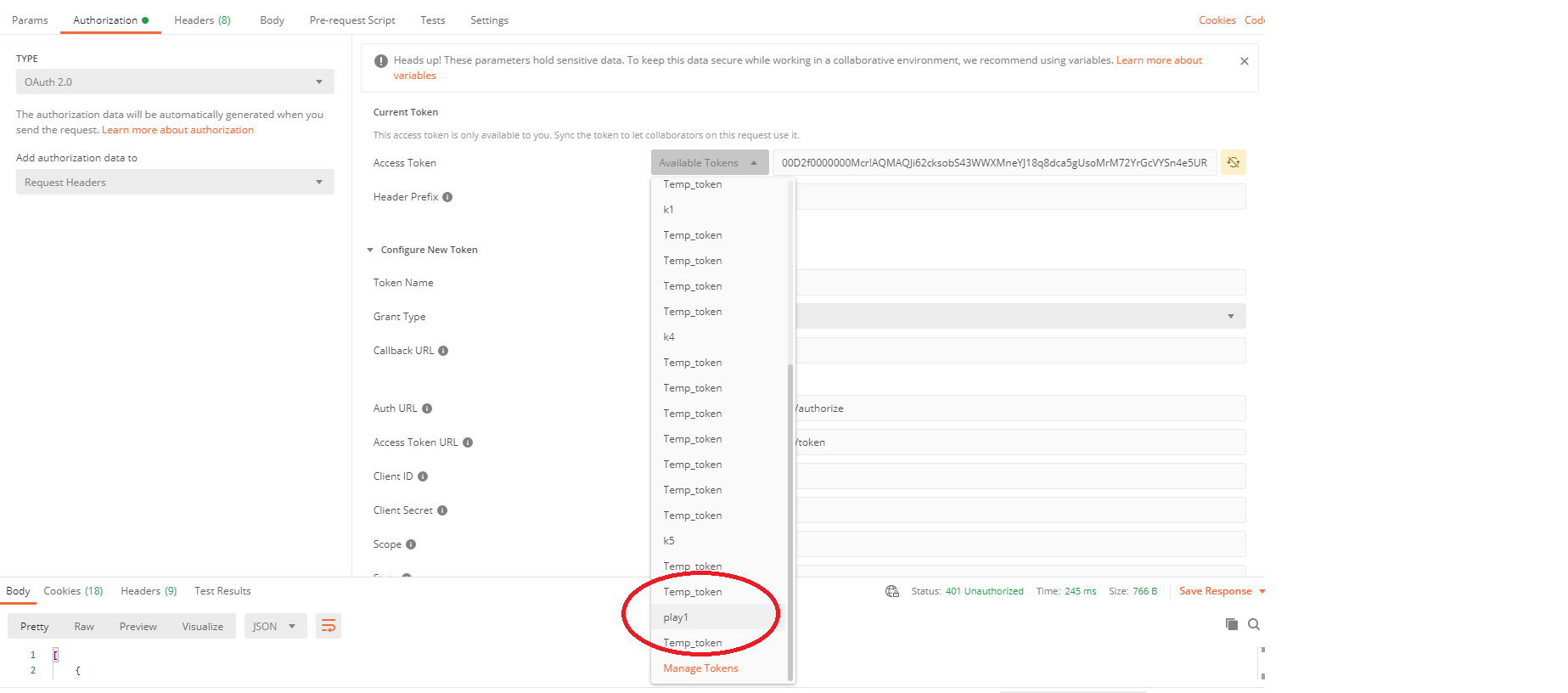
Done!